
Getting Started with CogVideo
Make your first video with CogVideo in a few minutes. Sign in, write a prompt, start generation, and play your finished clip.
This guide walks you through making your first clip with CogVideo using Text to Video, the quickest way to start from nothing but an idea. The same shape applies to the other tools: provide an input, start generation, and wait for the result.
You will need an account, since starting a generation requires signing in and draws from your credit balance.
Make your first video
Open a tool and sign in
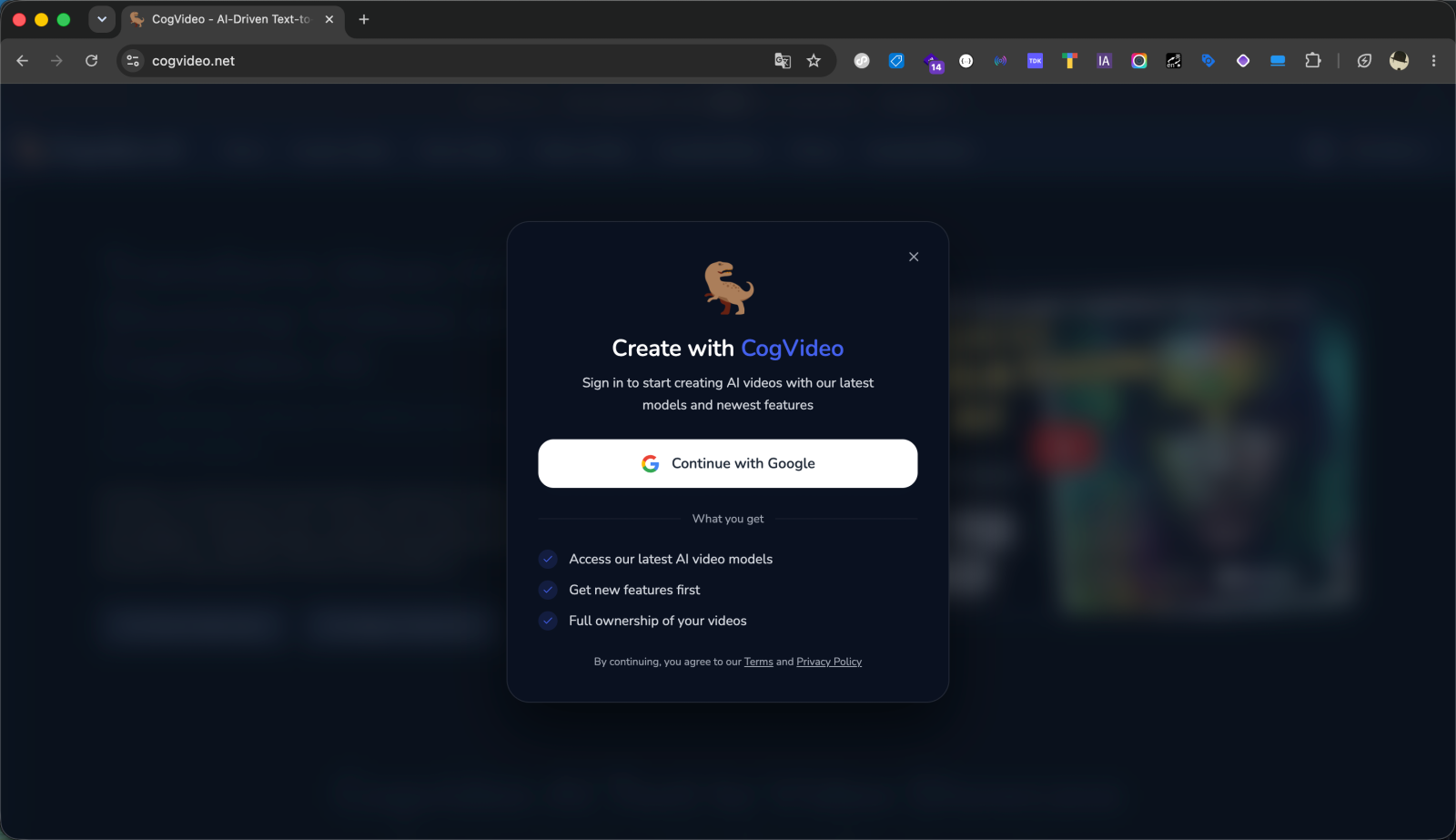
Go to the Text to Video page. If you are not signed in, a Create with CogVideo window appears when you start, with a single Continue with Google button. Sign in with your Google account to begin. Signing in gives you access to the latest AI video models, new features first, and full ownership of your videos.
Write your prompt
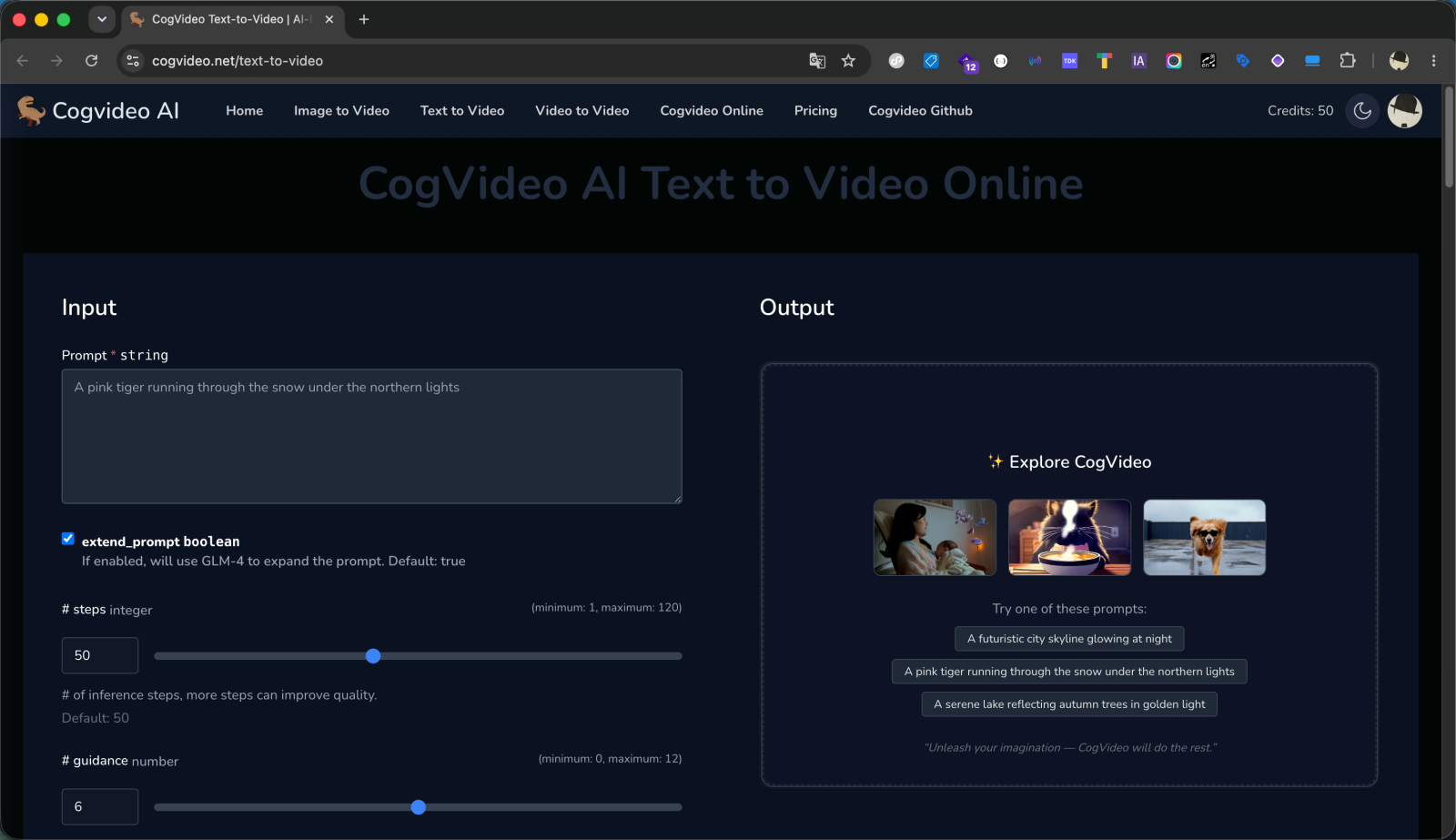
In the input panel, type a description of the video you want in the Prompt field. Be specific about the subject, the setting, and the action. For example: "A pink tiger running through the snow under the northern lights."
The prompt has a limit of 500 characters, so keep it focused. By default, the extend_prompt option is on, which uses the GLM-4 language model to expand your prompt into a richer description before generation.
Describe the scene, not just the subject
Naming the action, setting, and mood gives the model far more to work with. "A young woman walks through a serene park in autumn as golden leaves fall" produces a stronger result than "a person in a park." See the prompting guide for more.
Adjust settings (optional)
Text to Video exposes a few optional controls. You can leave them at their defaults for your first run:
- # steps controls how many inference steps run. More steps can improve quality. Default is 50.
- # guidance controls how closely the result follows your prompt. Higher guidance improves prompt adherence. Default is 6.
- # seed sets the random seed for reproducibility. Default is 42.
Start generation
Press Boot + Run to submit your task. You can also start it with the keyboard shortcut Cmd+Enter (Ctrl+Enter on Windows). A progress indicator appears in the output panel and updates while the job runs on GPU hardware. Generation can take a few minutes, so it is normal to wait.
Play and download your clip
When the job finishes, your finished video appears in the output panel, where you can play it. Your generations are also listed in the Recent Predictions table below the tool, each with a Download button and its status, timings, and credits used, so you can come back to earlier results. If a generation cannot be completed, the credits used for it are refunded.