
CogVideo Text to Video
Generate a short AI video from a written description with CogVideo Text to Video. Learn what it does, when to use it, and how to tune the settings.
CogVideo Text to Video turns a written description into a short AI-generated clip. You describe the scene you want in plain language and the model creates a video from it, with no source image or footage required.
Open the tool at Text to Video.
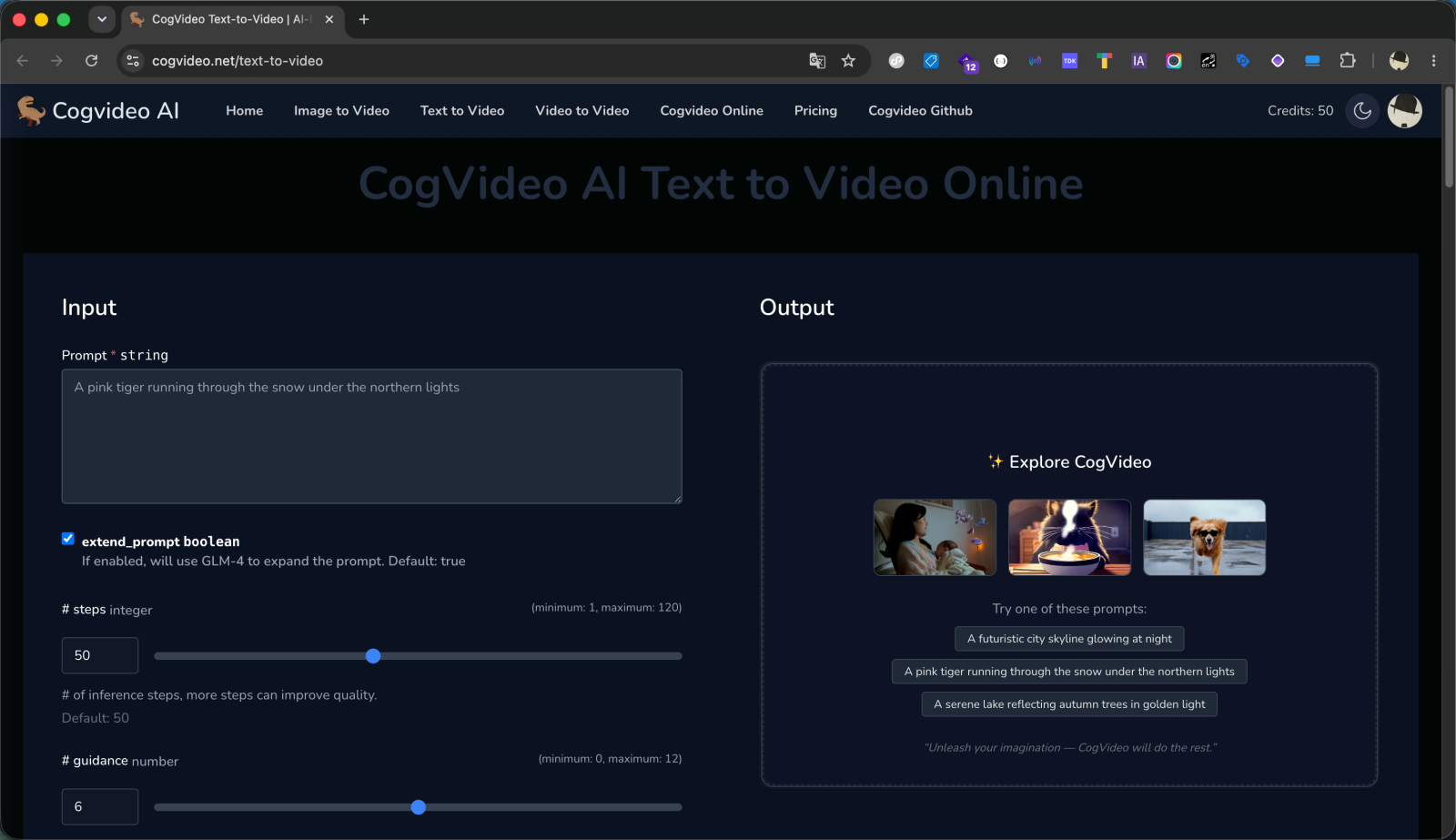
What it does
Text to Video reads your prompt and synthesizes motion video that matches it. It is the right starting point when you have an idea but no existing media to build from. Because the only input is text, the quality of your description has the biggest impact on the result, so a clear, specific prompt matters.
When to use it
- You are starting from a concept rather than a photo or clip.
- You want to explore variations of an idea quickly by changing the wording.
- You need an original scene that does not exist as source footage.
If you already have an image you want to animate, use Image to Video instead. If you want to transform existing footage, use Video to Video.
How to generate
Write your prompt
Enter a description in the Prompt field. Be specific about subject, setting, and action. The prompt is limited to 500 characters.
Tune the settings (optional)
Adjust the optional controls described below, or leave them at their defaults.
Start generation
Press Boot + Run to submit the task, then watch the progress indicator. You can also start it with Cmd+Enter (Ctrl+Enter on Windows). Reset to default inputs clears your changes back to the defaults. When it finishes, the clip appears in the output panel to play and download.
Settings
These are the controls Text to Video exposes, with their accepted ranges and defaults.
| Setting | What it does | Range | Default |
|---|---|---|---|
| Prompt | The text description of the video to generate. | Up to 500 characters | (empty) |
| extend_prompt | Uses the GLM-4 language model to expand your prompt into a richer description before generation. | On / Off | On |
| # steps | Number of inference steps. More steps can improve quality. | 1 to 120 | 50 |
| # guidance | How closely the result follows your prompt. Higher values improve prompt adherence. | 0 to 12 | 6 |
| # seed | Random seed for reproducibility. Reusing a seed reproduces a result. | Integer | 42 |
Generation takes time
Generation runs on GPU hardware and can take a few minutes. A progress indicator tracks the job. If a generation cannot be completed, the credits used for it are refunded.
Track and download your videos
Below the input form, the Recent Predictions table lists your generations with their status, queue and run times, the credits each one used, and a download link.
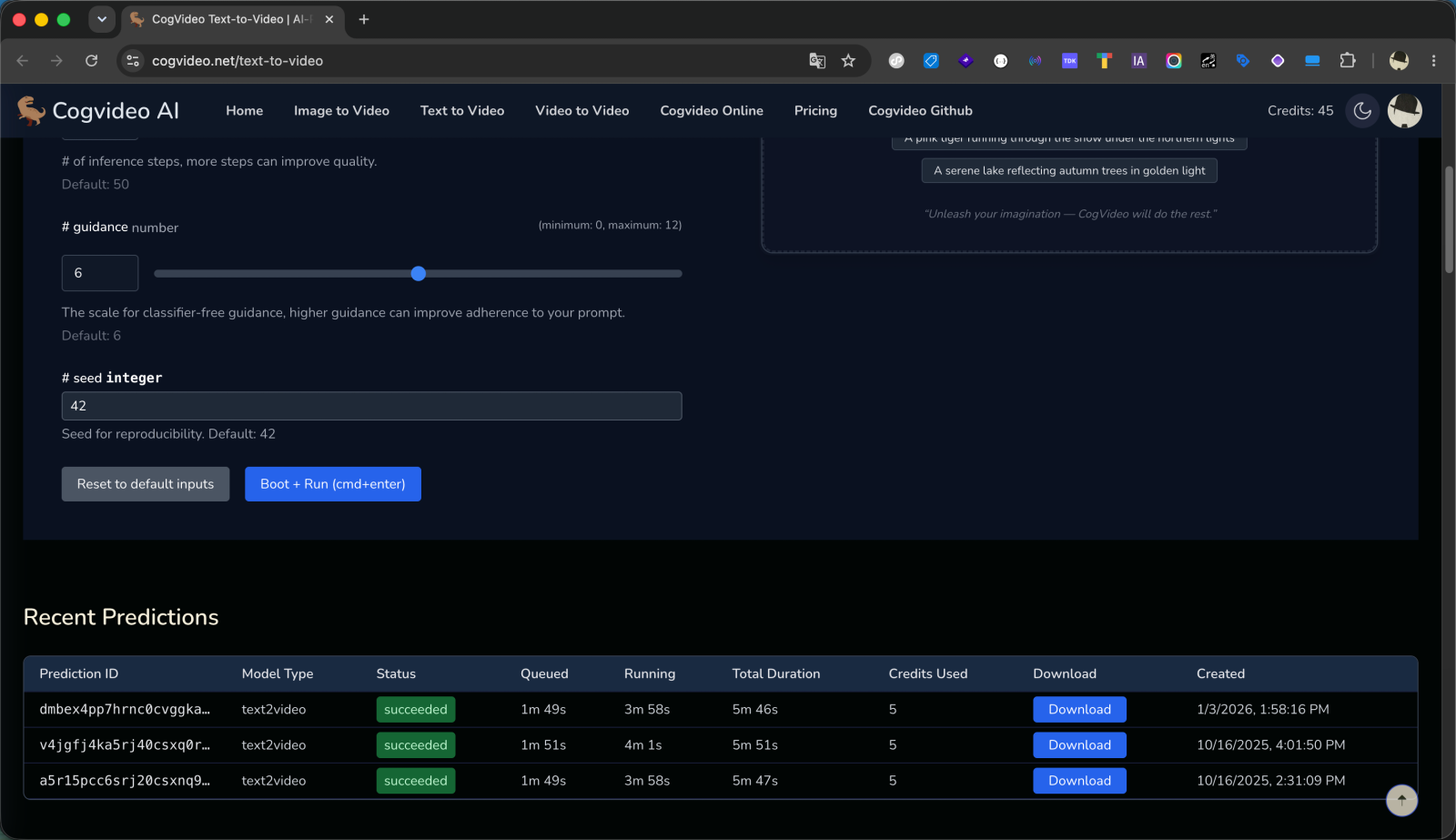
Each successful generation produces one clip and uses credits, shown in the Credits Used column; the current per-generation cost is listed on the Pricing page. Failed generations are refunded.
Tips
- Start from the defaults, then change one setting at a time so you can tell what each one does.
- Reuse a seed when you want to make a small change to the same scene rather than a brand-new result.
- See the prompting guide for how to structure a strong description.