CogVideo Image to Video
Animate a still image into a moving clip with CogVideo Image to Video. Learn what it does, when to use it, how to choose a model, and how to add a prompt.
CogVideo Image to Video animates a still image into a short moving clip. You upload an image, optionally describe how it should move, and the model brings it to life with motion.
Open the tool at Image to Video.
What it does
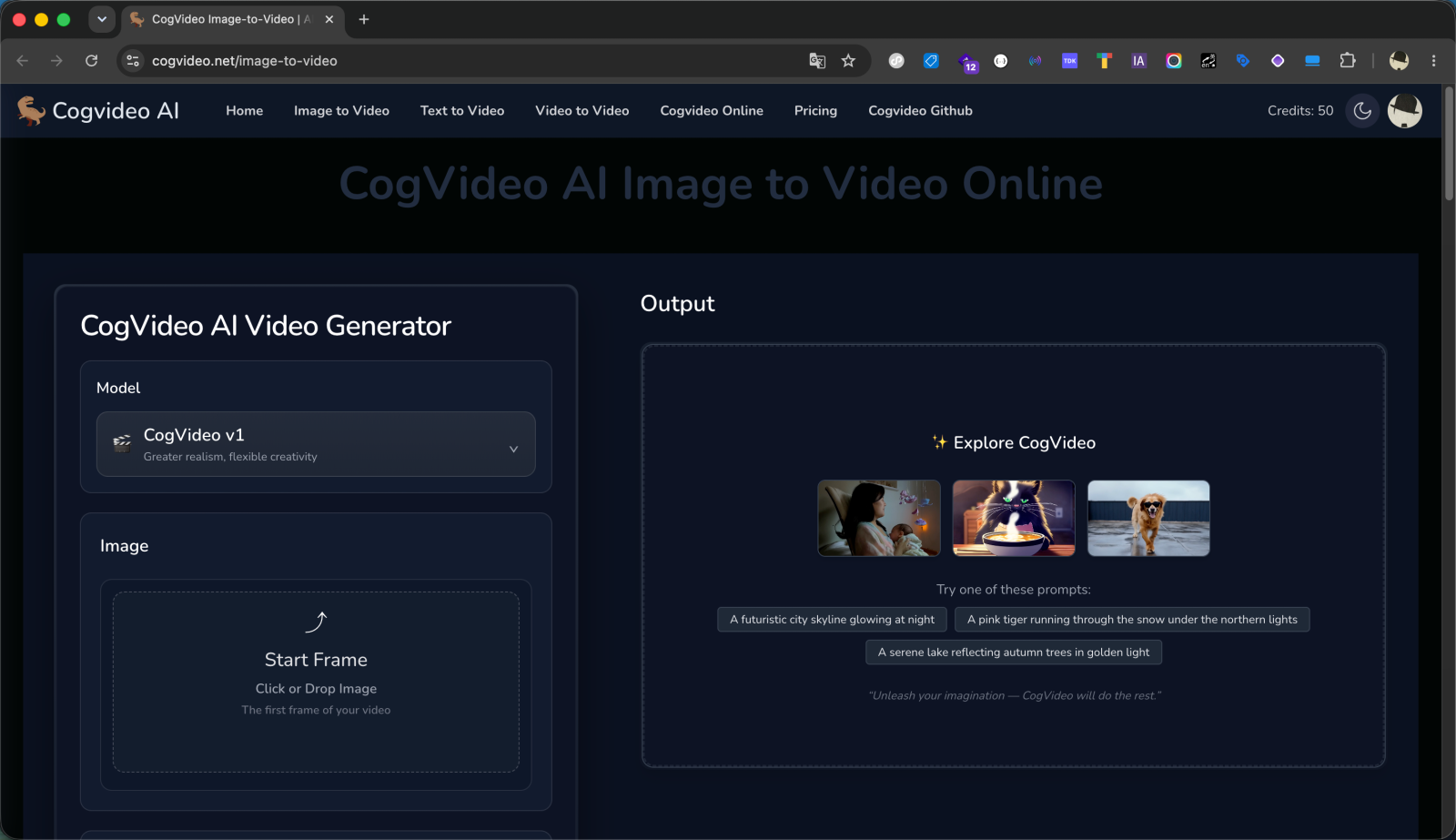
Image to Video takes a photo or illustration as the starting frame and generates motion from it. Because the look is already set by your image, it gives you more control over the final appearance than starting from text alone. A short prompt can guide what happens in the scene.
When to use it
- You already have an image with the look you want and need it to move.
- You want motion that stays faithful to a specific photo or illustration.
- You are animating artwork, a product shot, or a character design.
If you are starting from an idea with no image, use Text to Video instead.
Choosing a model
Image to Video offers two models through the model selector at the top of the form:
- CogVideo v1 (default): tuned for greater realism and flexible creativity. It uses a single Start Frame, the first frame of your video.
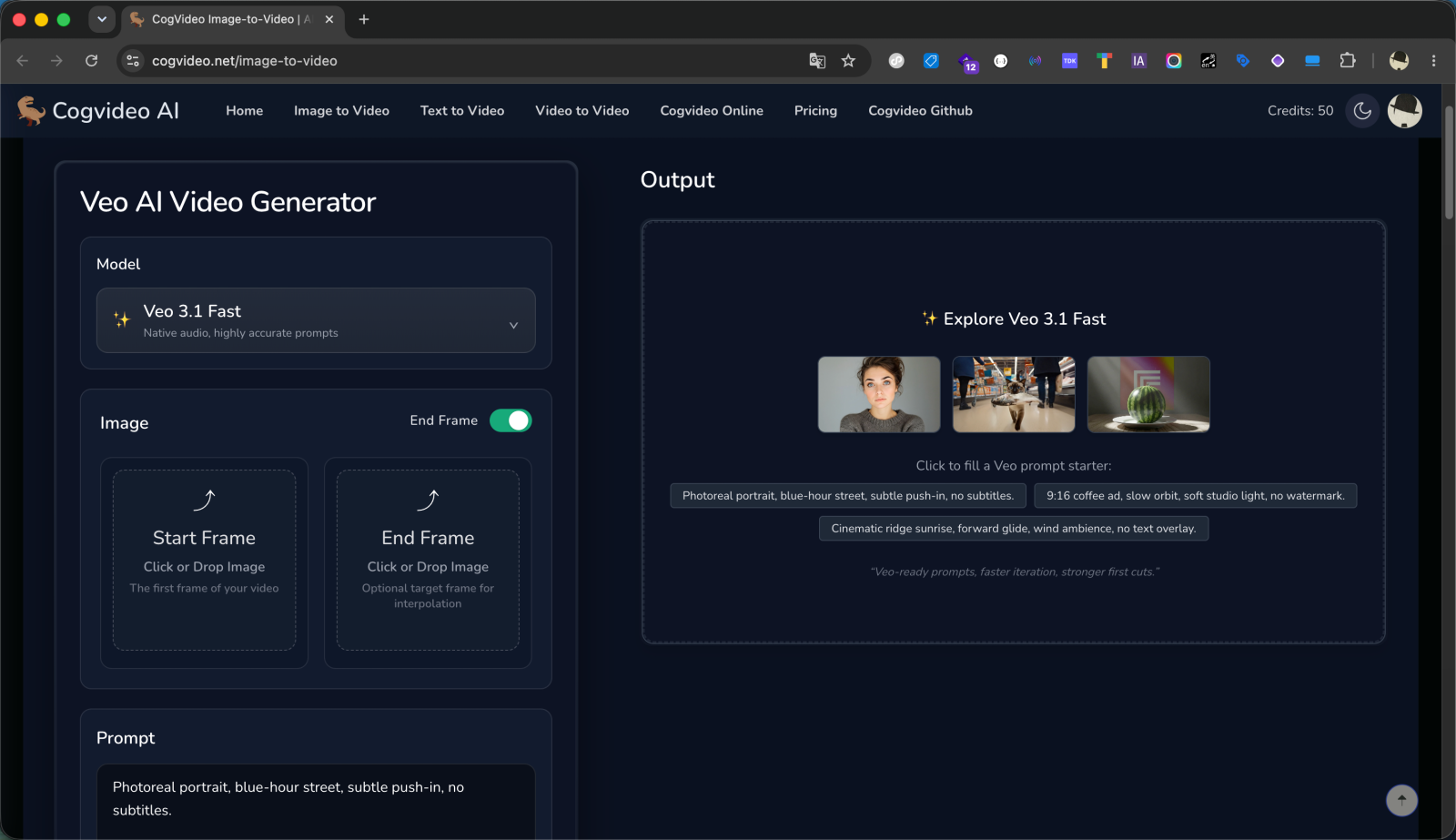
- Veo 3.1 Fast: native audio and highly accurate prompts. It adds an optional End Frame.
With Veo 3.1 Fast, turn on the End Frame toggle to upload a target ending image alongside your start frame, and the model interpolates the motion between the two. CogVideo v1 uses the start frame only.
See the Pricing page for the current credit cost.
How to generate
Pick a model
Use the model selector to choose CogVideo v1 or Veo 3.1 Fast. The default works well for a first run.
Upload your image
Add your image to Start Frame. With Veo 3.1 Fast, you can also enable End Frame and upload an ending image to interpolate toward.
Add a prompt (optional)
Describe the motion or scene you want in the prompt field to guide the result. Keep it short and focused on what should happen.
Generate
Start the generation from the run button below the form and watch the progress indicator. When it finishes, the clip appears in the output panel to play and download.
Input file size
Online uploads for Image to Video are limited to 50 MB. Use a smaller or compressed file if your image is larger.
Tips
- A clean, high-quality starting image produces a cleaner result.
- Keep prompts focused on motion ("the camera slowly pushes in," "leaves drift in the wind") rather than re-describing what is already in the image.
- See the prompting guide for more on writing effective prompts.